See how Planview Copilot makes even the smartest minds smarter by analyzing vast quantities of data, assisting with decision making, and putting plans in motion.
REDEFINE DECISION-MAKING WITH AI
The Planview AI-enabled Platform empowers business and delivery leaders with unprecedented data connectivity and visibility needed to make confident strategic decisions and deliver better business outcomes.
Watch NowUnlock your inner data scientist
Artificial Intelligence (AI) is breaking into mainstream use, and at Planview we’ve never been more excited! As a leader in Strategic Portfolio Management, Adaptive Portfolio Management, Value Stream Management, and Enterprise Agile Planning, our AI-enabled platform bridges disparate data silos to connect and create actionable insights that can be shared across the organization. With AI-based features now available as part of the Planview Platform for Connected Work everyone can be empowered – from the board room to the team room – with tangible intelligence that makes everyone an expert.
“By leveraging AI capabilities across the Planview Platform, we build on our position as a digital transformation system of record to become a system of connected intelligence. We’re using AI to seamlessly tap into and synthesize the vast amounts of data that exist across all organizations to change how strategic decisions are made. That’s extremely powerful.”

Razat Gaurav
Chief Executive Officer, Planview
Bio
Razat Gaurav
Chief Executive Officer, Planview
Razat Gaurav is chief executive officer of Planview, joining the company in 2021. Razat has over 20 years of experience in the enterprise software space, with a proven track record of driving innovation-based growth and scaling up technology businesses. He is a trusted advisor to leading executives, boards and investors on topics related to digital transformation initiatives.
Prior to joining Planview, Razat was the CEO of LLamasoft, the leader in AI-based supply chain design and decisioning software. At LLamasoft, he drove an expanded product vision combined with a purpose-driven culture enabling the company to more than double its revenue in three years and resulted in a successful $1.5 billion acquisition by Coupa in November 2020. Prior to LLamasoft, Razat held leadership positions at Blue Yonder, i2 Technologies and Ernst & Young’s management consulting practice. He also served on the Board of Directors of Sparta Systems and LLamasoft. Razat was recognized by Goldman Sachs as one of the 100 Most Intriguing Entrepreneurs of 2020.
Razat serves on the Advisory Board of the University of Michigan’s Industrial and Operations Engineering (IOE) department. He is also engaged in various philanthropic and policy initiatives related to medical research, STEM education across minorities and efforts to reduce carbon emissions. Razat graduated with honors in Engineering from the Illinois Institute of Technology in Chicago.
Harness the collective intelligence of your enterprise
Planview’s AI-powered capabilities extract meaningful insights from the data across your organization to navigate uncertainty and drive better business outcomes.
-
Increase decision-making confidence
Understand the data relationships and analytic levers in the context of strategy, planning, and delivery. Access unique insights across teams, tools, and systems to responsibly create connected data visibility. -
Attain faster, better insights
Make better and faster decisions with predictive modeling, forward-looking simulations, and comparative data analysis. Overcome potential risks, re-allocate investments, and pivot plans before disruption occurs. -
Make everyone an expert
Enable everyone across the organization to become a data science expert. Converse with and question your data using your everyday language to prioritize and surface the most impactful actions and insights.
“With Planview Copilot, our generative AI assistant, we are providing a conversational interface that shifts the focus from needing to understand complex data analytics software and data science to simply interacting conversationally with the AI to get work done.”

Dr. Richard Sonnenblick
Chief Data Scientist, Planview
Bio
Dr. Richard Sonnenblick
Chief Data Scientist, Planview
Dr. Richard Sonnenblick is chief data scientist at Planview, joining the company in 2022 through the acquisition of Enrich. Rich founded Enrich in 1998 and served as CEO. Rich’s experiences working with some of the largest pharmaceutical and life sciences companies in the world have led him to elevate the most insightful prioritization and portfolio review processes, scoring systems, and financial valuation and forecasting methods, enhancing both product forecasting and portfolio analysis. He started his career building a decision analysis consulting practice at Lumina Decision Systems, where he worked on integrated assessments of environmental legislation and complex R&D valuation models for high technology firms. Dr. Sonnenblick holds a Ph.D. and MS from Carnegie Mellon University in Engineering and Public Policy, and a BA in Physics from the University of California, Santa Cruz.
Planview Platform Features: Artificial Intelligence
-
Planview Copilot
Planview Copilot empowers employees from the team room to the board room with access, connection, and visibility into your organization’s data and the insights hidden within. Converse with and question your data using natural language to glean insights, derive recommendations based on best practices, and inform strategic decisions.
-
AI Help
Unlock assistance on-demand with AI Help. Transform your Planview Platform experience with the AI Help in-app interface, providing plain text answers to your questions. Access thousands of pages of customer success center help articles and other product- or solution-specific documentation without ever leaving your screen.
-
Sentiment Analysis
Understand whether a product, project, or work item is truly on track by analyzing the emotional tone and sentiments of comment and status text as well as computational linguistics behind aggregated comments over time. Use the sentiment scores to reveal positive, neutral, or negative insights and make plan or work pivots before delivery is impacted.
-
Summarizers
Increase efficiency and productivity across your teams. Turn daily and weekly reporting chores into auto-generated insights. Use AI summarizers to save time, enhance knowledge, and provide actionable information by summarizing risks, issues, and work in progress, and even building release notes with the click of a button.
-
Optimizations & Simulations
Unlock scenario planning and dive into a realm of ‘what-if’ scenarios and trade-off analyses. Explore multiple avenues to pinpoint the most efficient and effective allocation of your capital and capacity for peak performance and strategic success.
Planview Copilot makes even the smartest minds smarter
As businesses race against time to survive and thrive in an age of digital disruption, even the most successful and experienced business and delivery leaders can use a little help from a knowledgeable advisor to analyze vast quantities of data, assist with decision making, and put plans in motion. Planview Copilot is that knowledgeable advisor.
See Planview Copilot in action
See how Planview Copilot can help you:
- Synthesize and gain meaningful insights from complex data
- Understand performance relative to comparable benchmarks
- Resolve obstacles using recommended best practices
- Perform time-consuming tasks with a click of a button
Join Planview on the AI journey
AI has evolved into a transformative technology that can help organizations synthesize large data sets, create new content, predict scenarios, and augment human decision-making. It is quickly becoming a necessity for how the enterprise interacts and uses its data.
By integrating generative AI and machine learning capabilities into the Planview Platform we can empower organizations to make significant advances in their ability to achieve business outcomes. By rapidly bridging insight and intelligence gaps that may exist across the business, we can foster faster pivots, speed time to value, and enable confident strategic decisions. And, sometimes it’s as easy as having a conversation with your data!
Join us for an Executive Briefing as we share how we are using AI to drive transformation and change, and how we can put AI to work within your organization today.
Ready to explore all the possibilities?
Request an Executive BriefingOn-Demand Panel Discussion
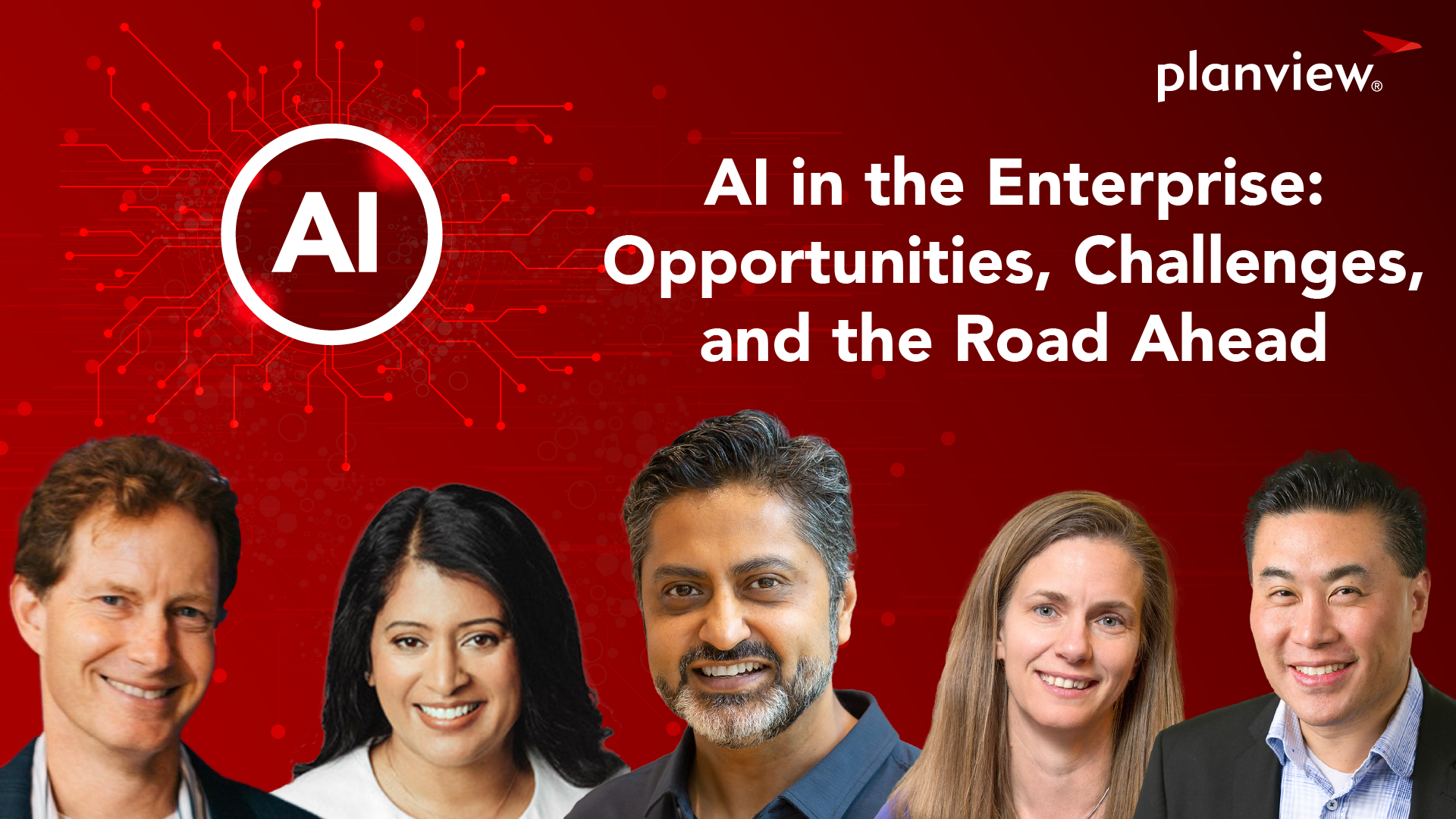
AI in the Enterprise: Opportunities, Challenges, and the Road Ahead
Is AI a silver bullet or overhyped? Either way, we know this much to be true: AI is a corporate imperative. Nearly three-fourths (73%) of companies are prioritizing AI over all other digital investments, according to research by Accenture. Join moderator Ray Wang and a panel of industry leaders to understand the implications of AI and how leaders can advance responsible AI within their organization, and for their customers.
Discussion Topics
- AI is not new
- Implications for enterprise data
- Improving decision-making and execution
- How does Generative AI fit in?
- Responsible AI
- Impact on knowledge workers
- What can organizations do now?
Moderator
 Ray Wang
Principal Analyst, Founder & Chairman
Constellation Research, Inc.
Bio
Ray Wang
Principal Analyst, Founder & Chairman
Constellation Research, Inc.
Bio
Ray Wang
Principal Analyst, Founder & Chairman
Constellation Research, Inc.
R “Ray” Wang is the CEO of Silicon Valley-based Constellation Research Inc. Ray co-hosts DisrupTV, a weekly enterprise tech and leadership webcast that averages 50,000 views per episode, and he blogs at www.raywang.org. He coined the term “Metaverse Economy” in 2020.
His ground-breaking, best-selling book on digital transformation, Disrupting Digital Business, was published by Harvard Business Review Press in 2015. Ray’s new best-selling book, released in 2021, is titled, Everybody Wants to Rule the World: Surviving and Thriving in a World of Digital Giants. He is frequently quoted and interviewed in media outlets such as the Wall Street Journal, Fox Business, CNBC, CIO, and Bloomberg.
Panelists
 Sejal Amin
Chief Technology Officer
Shutterstock
Bio
Sejal Amin
Chief Technology Officer
Shutterstock
Bio
Sejal Amin
Chief Technology Officer
Shutterstock
Sejal Amin is a senior technology executive and product development expert with more than 25 years of experience leading large teams through cultural, operational, and technology transformation for SaaS initiatives. Currently, she is the Chief Technology Officer for Shutterstock. She has a wide range of technology leadership experience and has managed global product development teams and portfolios of growing size and complexity for 15+ years. She has led several enterprise-wide transformation initiatives focused on project-to-product transitions, organizational transformations, technology portfolio redesigns, and building high-performance product development cultures to keep pace with a rapidly changing technology environment.
Sejal was recognized on the BT150 Transformational Executive List in 2021 and has several professional associations, including Board Director for the Value Stream Consortium, Board Director for Pariveda Solutions, and an advisory board role for 3Pillar Global.
 Jana Eggers
CEO
Nara Logics
Bio
Jana Eggers
CEO
Nara Logics
Bio
Jana Eggers
Chief Technology Officer
Nara Logics
Jana began her professional career at Los Alamos National Laboratory modeling electron transfer in conducting polymers using high-performance computing and artificial intelligence. After Los Alamos, she attended graduate school in computer science, and then left research to join the business world in 1994.
Her roles intermix software engineering, software product management, and general management. She has held technical and leadership roles at start-ups, like PTCG (supply chain optimization) and Apps.com (online applications), that were bought by American Airlines and Intuit, respectively. Both acquisitions led to senior roles at the acquiring companies. Another small start-up she joined was Lycos, which grew to be an internet search leader. Her career has taken her to Europe twice: first for Sabre Group, to open the European operations for supply chain optimization, and next as CEO of Germany-based, sprd.net AG, one of the first mass-customization platforms on the web. Her focus and passion are bringing high-end technology to everyday problems. Jana is a noted expert in artificial intelligence, software product management and development, and enterprise innovation. She holds a degree in mathematics and computer studies from Hendrix College and has completed graduate studies in computer science at Rensselaer Polytechnic Institute.
 Razat Gaurav
CEO
Planview
Bio
Razat Gaurav
CEO
Planview
Bio
Razat Gaurav
Chief Executive Officer
Planview, Inc.
Razat Gaurav is chief executive officer of Planview, joining the company in 2021. Razat has over 20 years of experience in the enterprise software space, with a proven track record of driving innovation-based growth and scaling up technology businesses. He is a trusted advisor to leading executives, boards and investors on topics related to digital transformation initiatives.
Prior to joining Planview, Razat was the CEO of LLamasoft, the leader in AI-based supply chain design and decisioning software. At LLamasoft, he drove an expanded product vision combined with a purpose-driven culture enabling the company to more than double its revenue in three years and resulted in a successful $1.5 billion acquisition by Coupa in November 2020. Prior to LLamasoft, Razat held leadership positions at Blue Yonder, i2 Technologies and Ernst & Young’s management consulting practice. He also served on the Board of Directors of Sparta Systems and LLamasoft. Razat was recognized by Goldman Sachs as one of the 100 Most Intriguing Entrepreneurs of 2020.
Razat serves on the Advisory Board of the University of Michigan’s Industrial and Operations Engineering (IOE) department. He is also engaged in various philanthropic and policy initiatives related to medical research, STEM education across minorities and efforts to reduce carbon emissions. Razat graduated with honors in Engineering from the Illinois Institute of Technology in Chicago.
 Rich Sonnenblick
Chief Data Scientist
Planview
Bio
Rich Sonnenblick
Chief Data Scientist
Planview
Bio
Rich Sonnenblick
Chief Data Scientist
Planview
Dr. Richard Sonnenblick is chief data scientist at Planview, joining the company in 2022 through the acquisition of Enrich. Rich founded Enrich in 1998 and served as CEO. Rich’s experiences working with some of the largest pharmaceutical and life sciences companies in the world have led him to elevate the most insightful prioritization and portfolio review processes, scoring systems, and financial valuation and forecasting methods, enhancing both product forecasting and portfolio analysis.
He started his career building a decision analysis consulting practice at Lumina Decision Systems, where he worked on integrated assessments of environmental legislation and complex R&D valuation models for high technology firms. Dr. Sonnenblick holds a Ph.D. and MS from Carnegie Mellon University in Engineering and Public Policy, and a BA in Physics from the University of California, Santa Cruz.
-
Featured Report
April 2023 Gartner® Magic Quadrant™ for Strategic Portfolio Management
Planview is Named a Leader – Download the Report Now!
Get the report • April 2023 Gartner® Magic Quadrant™ for Strategic Portfolio Management
-
Announcing Planview Copilot: Accelerate Transformation and Action Data-Driven Strategic Decision-Making
Meet your new advanced generative AI assistant for connected work.
Read the blog • Announcing Planview Copilot: Accelerate Transformation and Action Data-Driven Strategic Decision-Making -
The Revolution is Here: Generative AI and Project Management
Quicker, more dynamic insights can help your projects run more efficiently than ever. Here’s the AI tech you need to know.
Read the blog • The Revolution is Here: Generative AI and Project Management -
AI Has Taken the Boardroom by Storm. Here’s What You Must Know.
For CEOs, the rewards of transforming your business from a traditional to a digital operating model are too massive – and too essential – to ignore.
Read the blog • AI Has Taken the Boardroom by Storm. Here’s What You Must Know.

Mik + One Podcast
Join Planview CTO Mik Kersten and technology visionary George Kadifa as they discuss generative AI and its potential impact on the tech industry. George discusses how generative AI has changed the conversation with machines, allowing them to generate new content, code, images, and videos in a multi-modal fashion.
Listen now
Dr. Mik Kersten
Chief Technology Officer, Planview

George Kadifa
Managing Director, Sumeru Equity Partners
- Nationwide Building Society
- Citi
- Dell
- Novartis
- Agropur
- Allianz
- DaVita
- Viessmann
- VW Volkswagen
- Box
- NatWest
- Walmart
- Diageo
- Pfizer
- AkzoNobel
- UPS United Parcel Service
- Beam
- Conagra Brands
- Volvo
- Danone
- Siemens
- Roche
- De Beers Jewelers
- Honeywell
- MetLife
- EA Sports
- BCBS Blue Cross Blue Shield
- Vodafone Group
- Commonwealth Bank
- Abbott Nutrition
- Thermo Fisher Scientific
- ABB Group
- Johnson & Johnson
Planview has one mission: to build the future of connected work, from ideas to impact. Planview helps organizations accelerate the achievement of what matters most, supporting our customers from need to speed, from passion to progress, and from overhead to optimization. Our connected platform of solutions underpins the business and digital transformations of more than 4,500 customers globally, including 59 of the Fortune 100. Planview empowers enterprises to improve time-to-market and predictability, increase efficiency to unlock capacity, and ensure their most strategic initiatives deliver the desired business outcomes.
Watch Full Panel Discussion
 Full AI Panel Video
Currently playing
Full AI Panel Video
Currently playing
Interesting Moments
 AI Is Not New!
Currently playing
AI Is Not New!
Currently playing
 AI’s Impact on Human Capital
Currently playing
AI’s Impact on Human Capital
Currently playing
 The Shifting Role of Customer Data
Currently playing
The Shifting Role of Customer Data
Currently playing
 Data as a Product
Currently playing
Data as a Product
Currently playing
 Blockers to Feeding the AI Engine
Currently playing
Blockers to Feeding the AI Engine
Currently playing
 AI Use Cases
Currently playing
AI Use Cases
Currently playing
 Leveraging AI Internally
Currently playing
Leveraging AI Internally
Currently playing
 Customer Experience & AI
Currently playing
Customer Experience & AI
Currently playing
 Gen AI: Silver Bullet or Overhyped?
Currently playing
Gen AI: Silver Bullet or Overhyped?
Currently playing
 Traditional AI vs. Generative AI
Currently playing
Traditional AI vs. Generative AI
Currently playing
 Responsible AI: Trust & Ethics
Currently playing
Responsible AI: Trust & Ethics
Currently playing
 What Can Organizations Do Today?
Currently playing
What Can Organizations Do Today?
Currently playing